![Logo Arenametrix détouré blanc HD.png]](https://guide.arenametrix.com/hs-fs/hubfs/Logo%20Arenametrix%20d%C3%A9tour%C3%A9%20blanc%20HD.png?height=44&name=Logo%20Arenametrix%20d%C3%A9tour%C3%A9%20blanc%20HD.png)
- Create a sign-up form
- Edit a sign-up form
- List selection
- Share your form
1. Create a sign up form
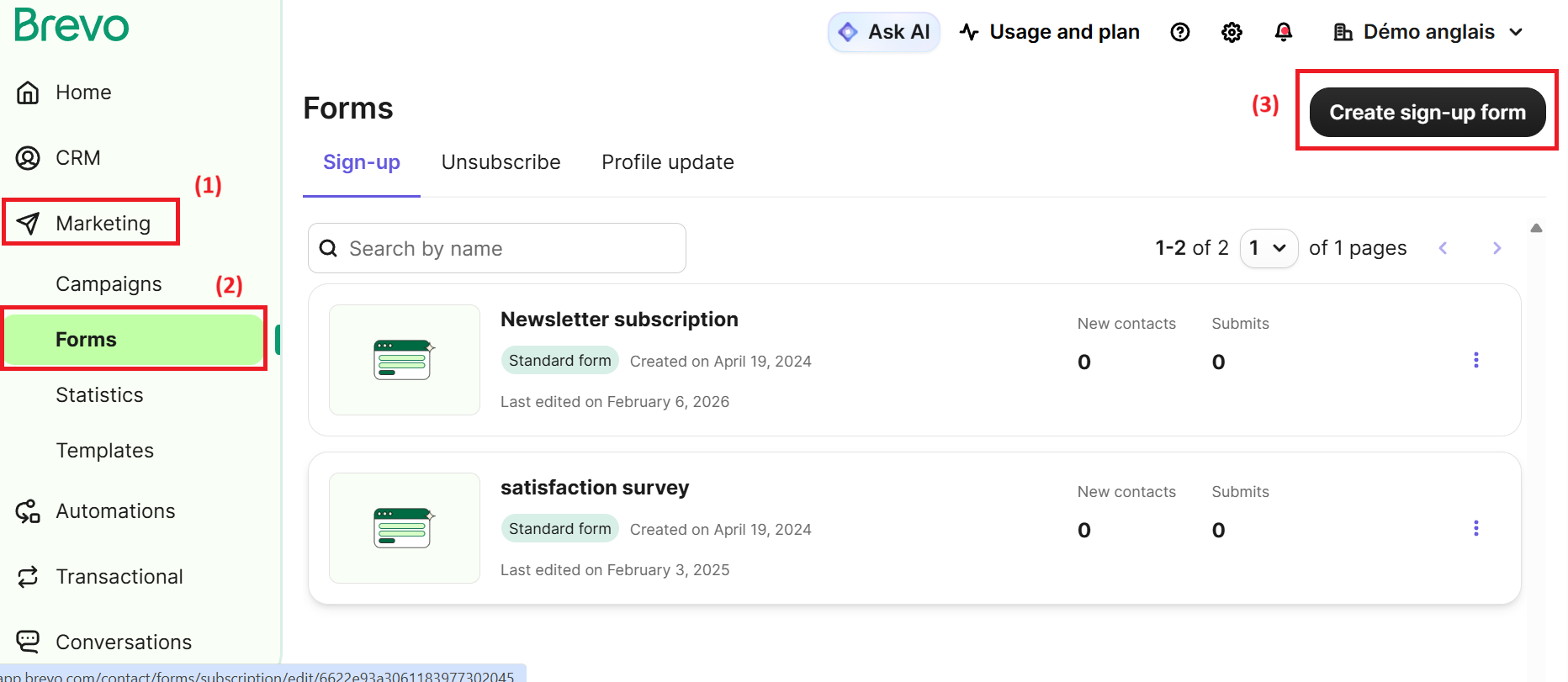
To get started, go to Marketing (1), then Forms (2), and click Create a sign-up form (3).
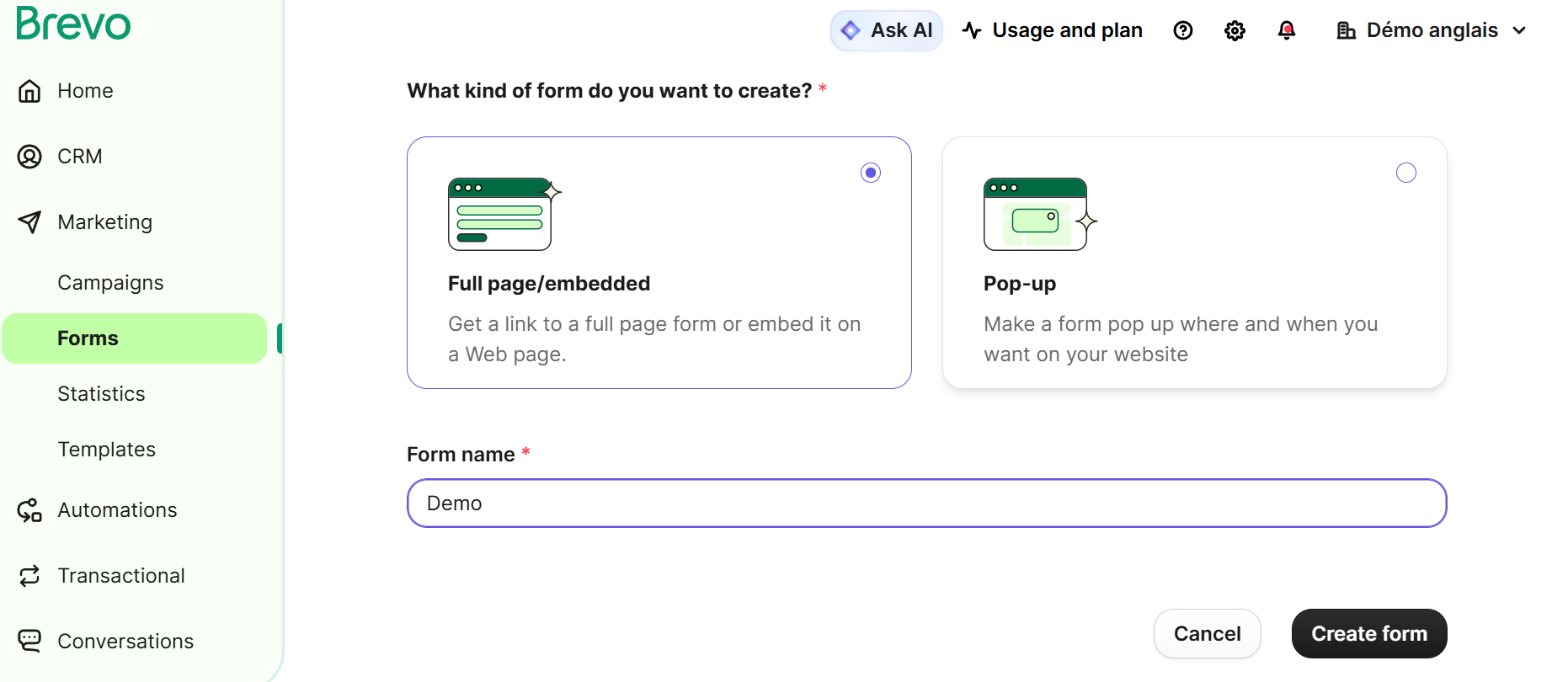
Then give your form a name so you can easily manage and identify it within your account.
2. Edit a sign-up form
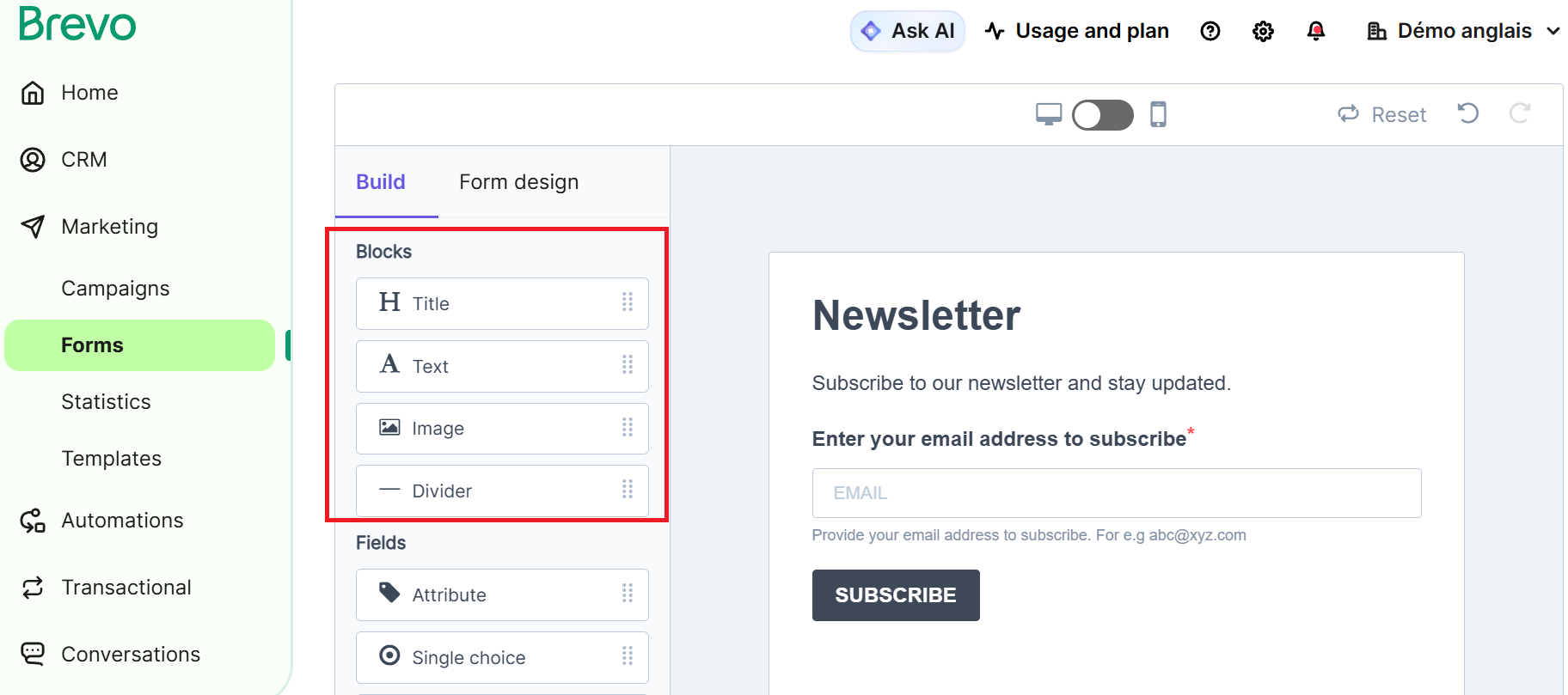
In the Blocks section, you can build the visual structure of your form using drag & drop.
You can add content elements such as a title, text, image, or divider to organize your form and improve its readability.
These blocks help structure the form before adding data collection fields.
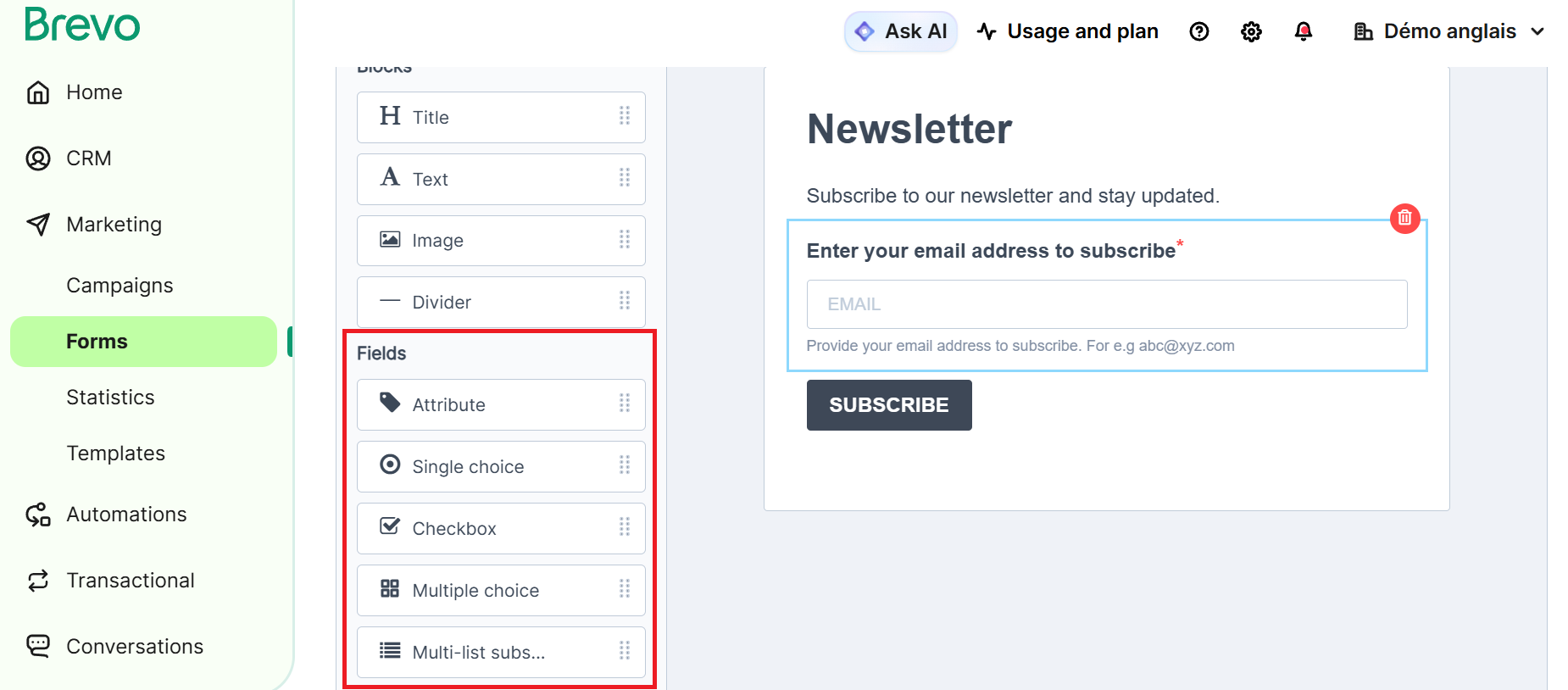
In the Fields section, you can insert elements used to collect information from your contacts.
The different field types correspond to the following uses:
-
Attribute: a field linked to a contact attribute (e.g. first name, date of birth, phone number). It allows you to enrich or update data in your database.
-
Single choice: allows the contact to select one answer among several options.
-
Checkbox: generally used to collect consent (e.g. acceptance of communications).
-
Multiple choice: allows the contact to select several answers among the available options.
-
Multi-list subscription: allows contacts to choose the lists they want to subscribe to (e.g. interests). For more details on its setup, refer to the dedicated article.
Each field added is linked either to a contact attribute or to a list, allowing your database to be automatically enriched.
3. List selection
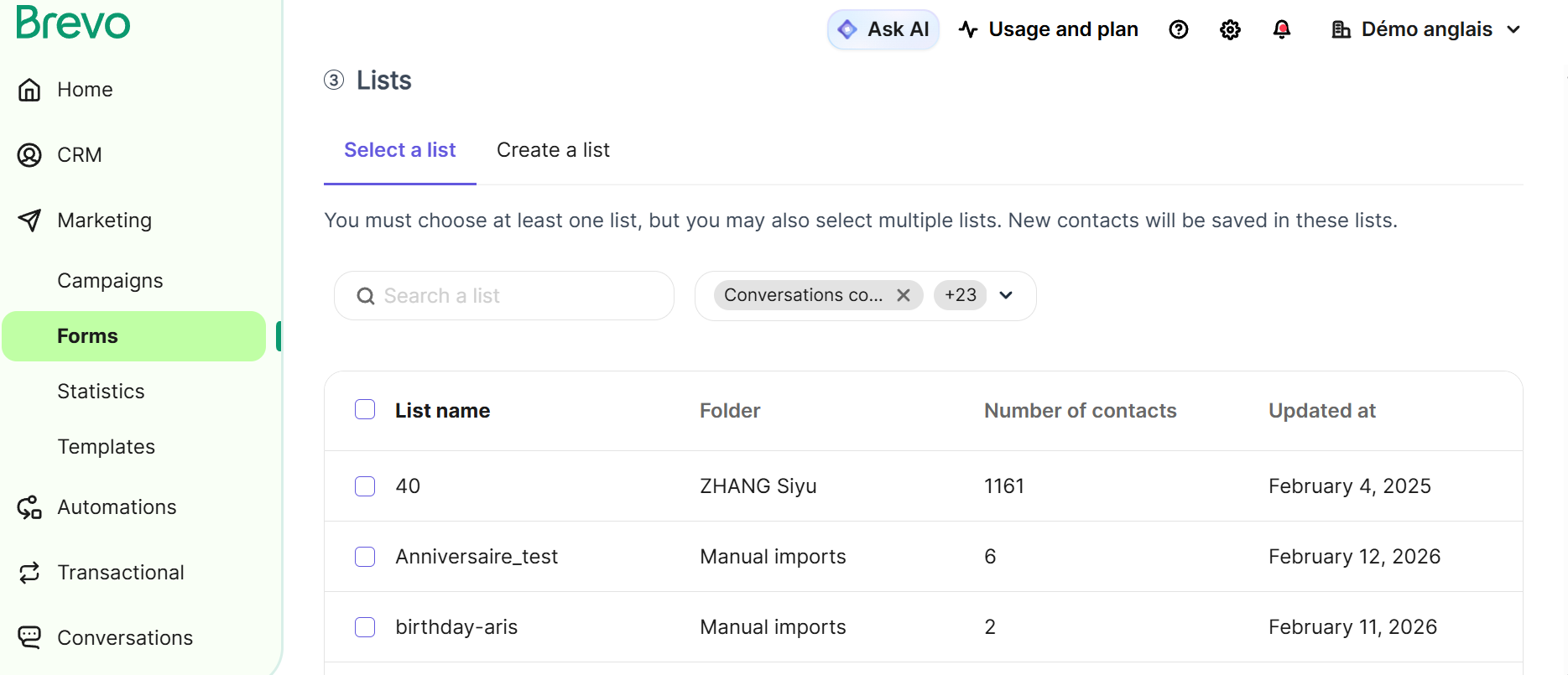
Once you have finished editing your form, select the list(s) where your new contacts will be stored after submitting the form. Please note that this must be a static list, as contacts cannot be added to a dynamic list.
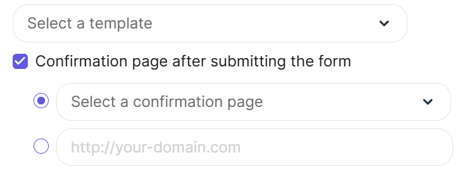
After clicking the form’s submit button, your contacts will automatically be redirected to the URL you defined (e.g. http://www.your-website.com ) or to a confirmation page. If no URL or confirmation page is selected, a confirmation message will appear at the top of the form without changing the page. To set up a redirection URL, enter your website address in the Redirection URL field.
4. Share your form
Once your form is saved, you can share it and obtain a code to embed it on your website or a link for quick sharing. Three types of code are available:
-
Iframe: easy to implement, this code allows you to embed the form in a pop-up or a page on your website.
-
HTML: offers more customization options, such as Ajax-based animations for messages.
-
Simple HTML: a simplified version of the HTML code that does not require JavaScript.
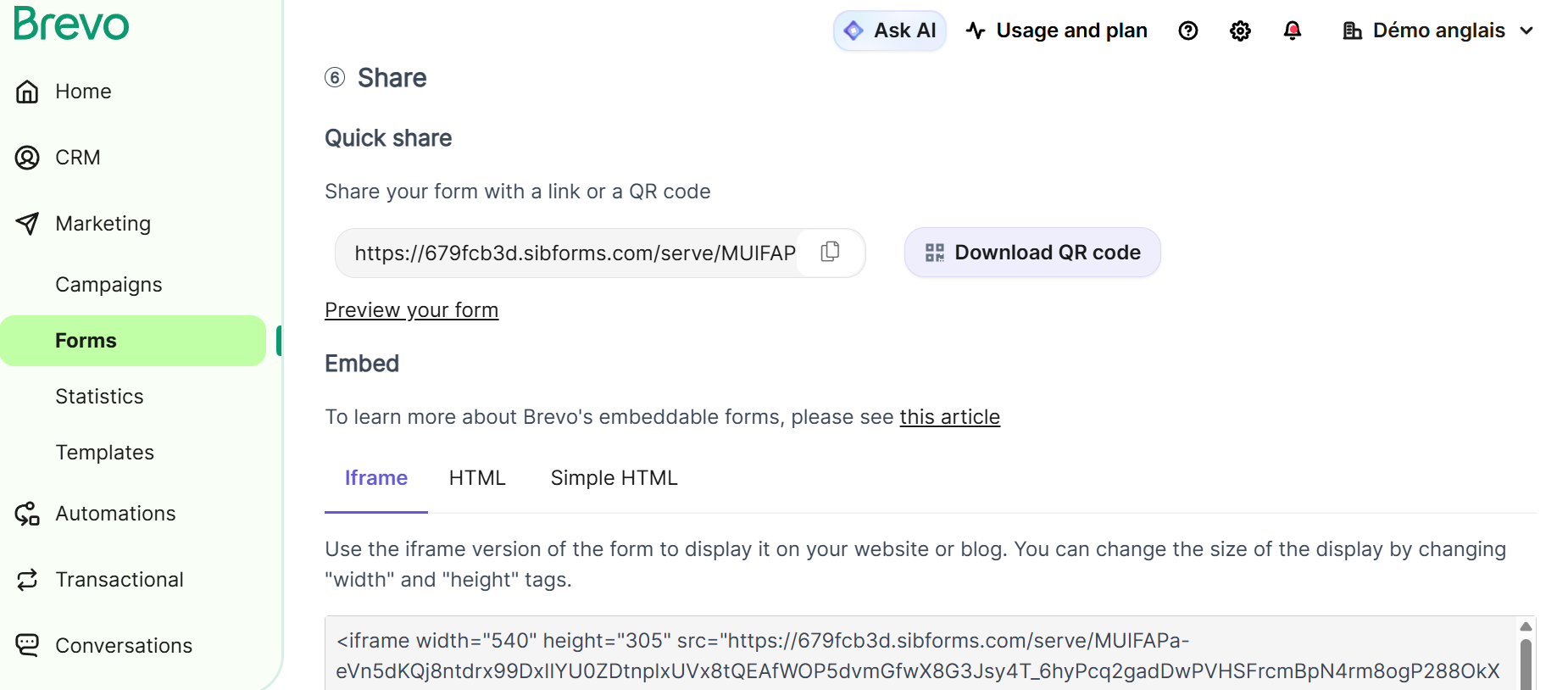
Good to know: this form code cannot include a Captcha requiring a JavaScript request. Finally, paste the code into your website to display the form.