![Logo Arenametrix détouré blanc HD.png]](https://guide.arenametrix.com/hs-fs/hubfs/Logo%20Arenametrix%20d%C3%A9tour%C3%A9%20blanc%20HD.png?height=44&name=Logo%20Arenametrix%20d%C3%A9tour%C3%A9%20blanc%20HD.png)
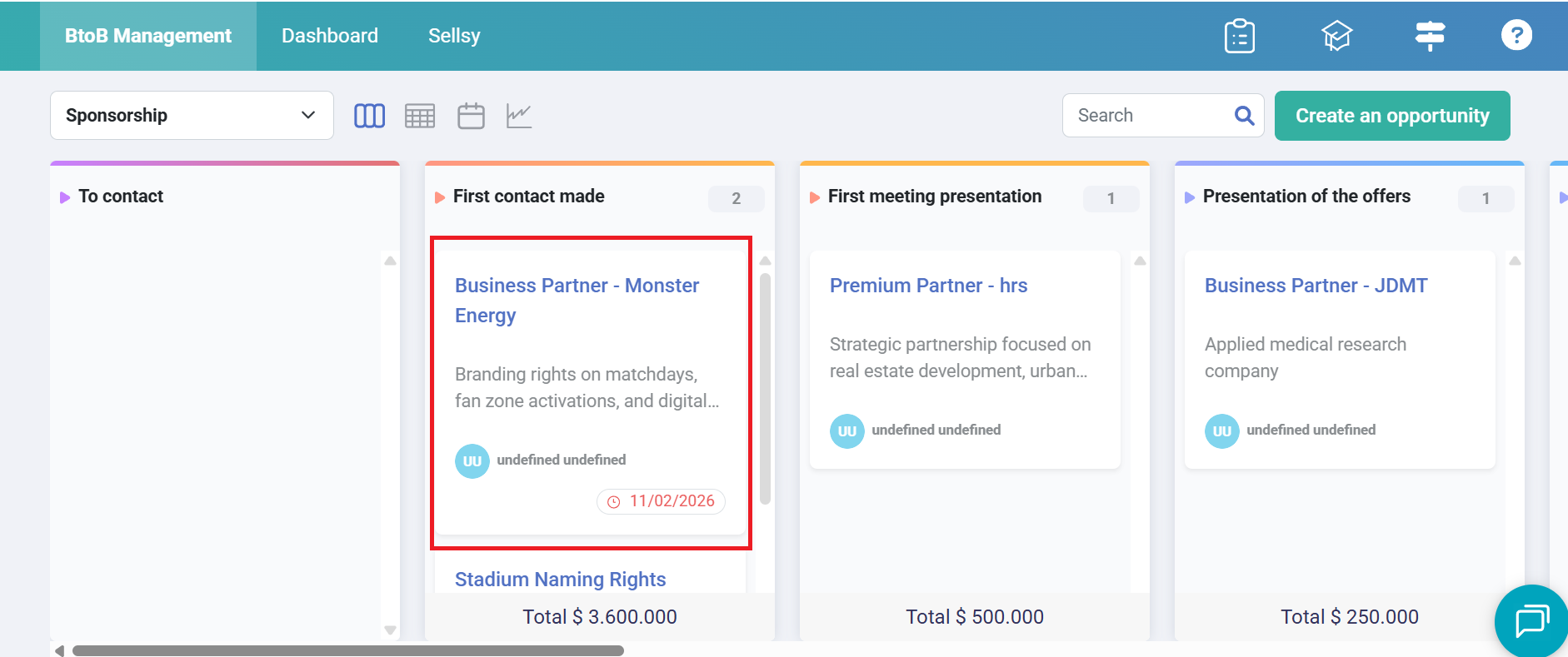
To view, create, or edit notes linked to an opportunity, click on the opportunity:
In the side panel that opens, go to the Activity feed tab (1), then Notes (2).
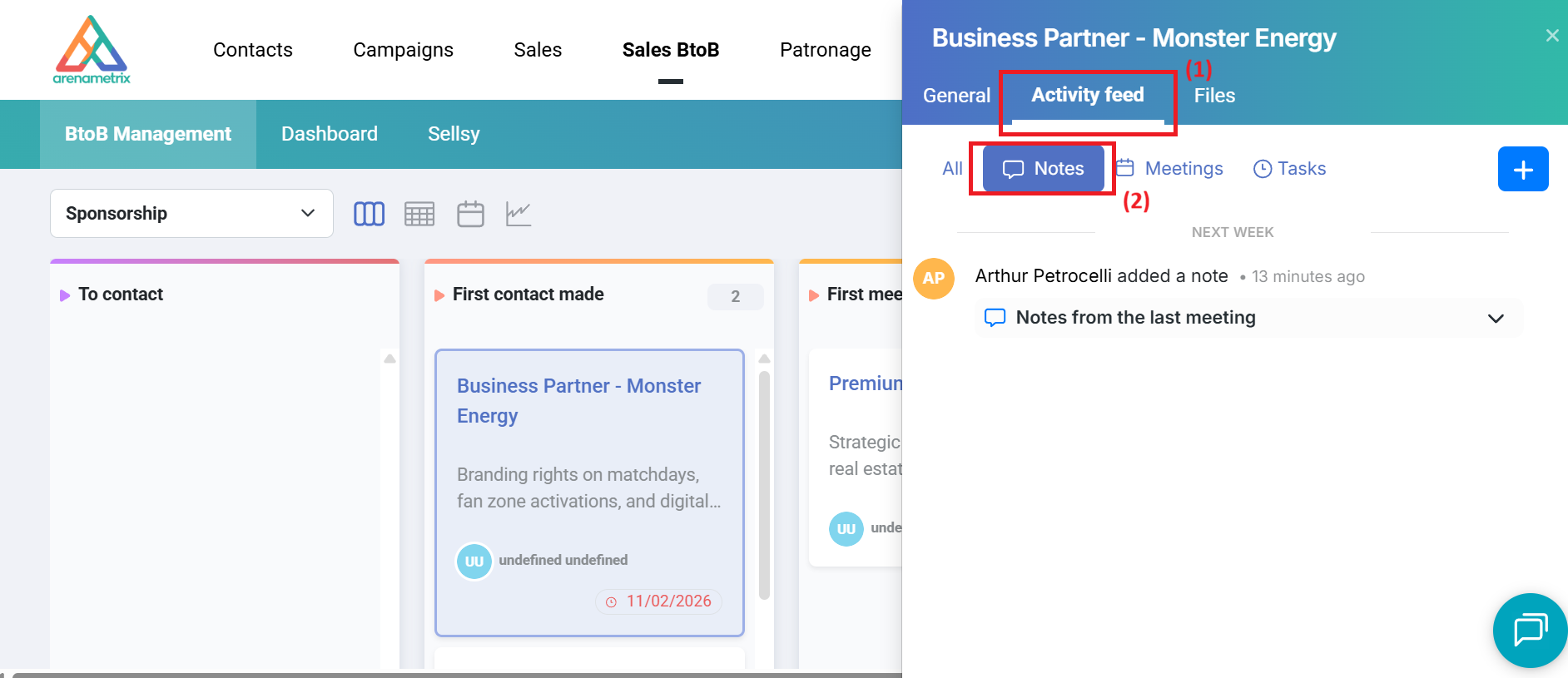
You will then be able to view the notes you have created.
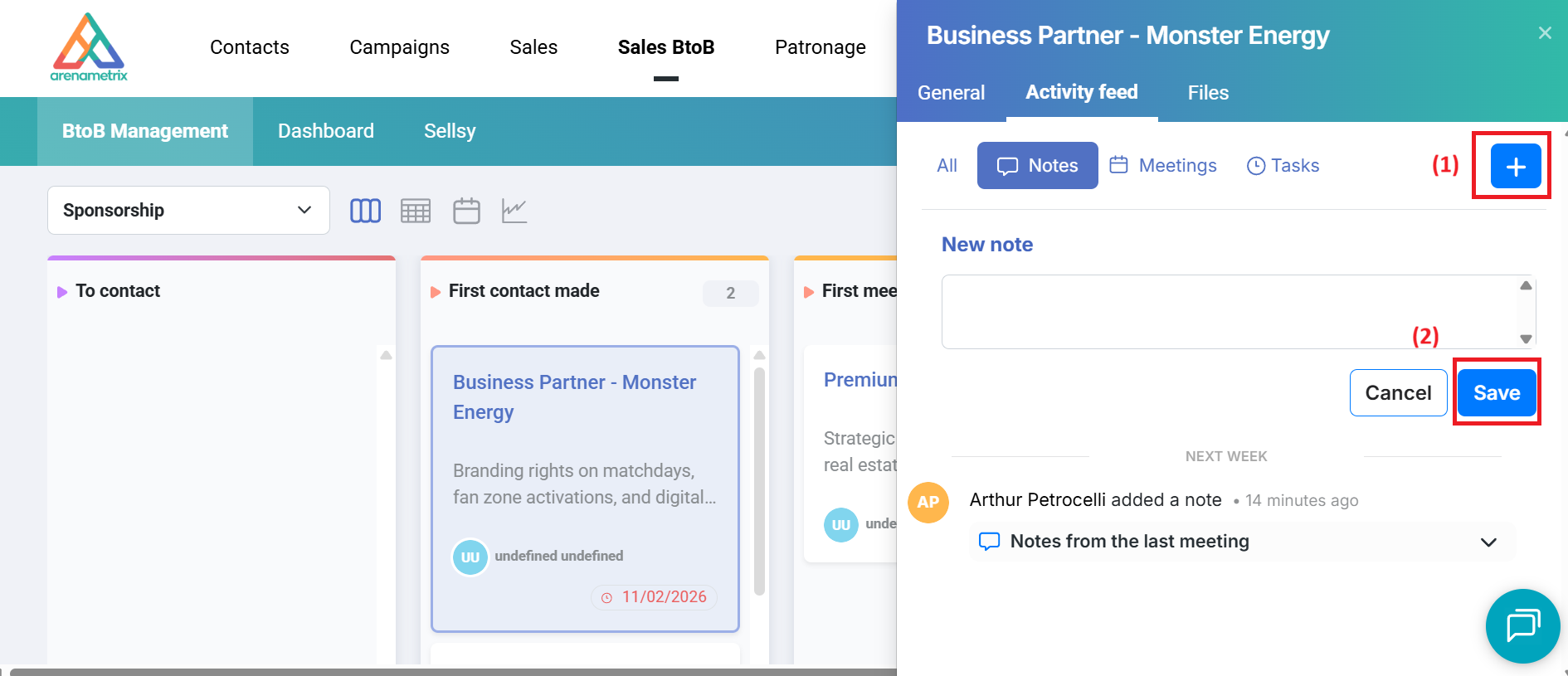
To add a new note, click the + (1), fill in the fields, then click the Save icon (2).
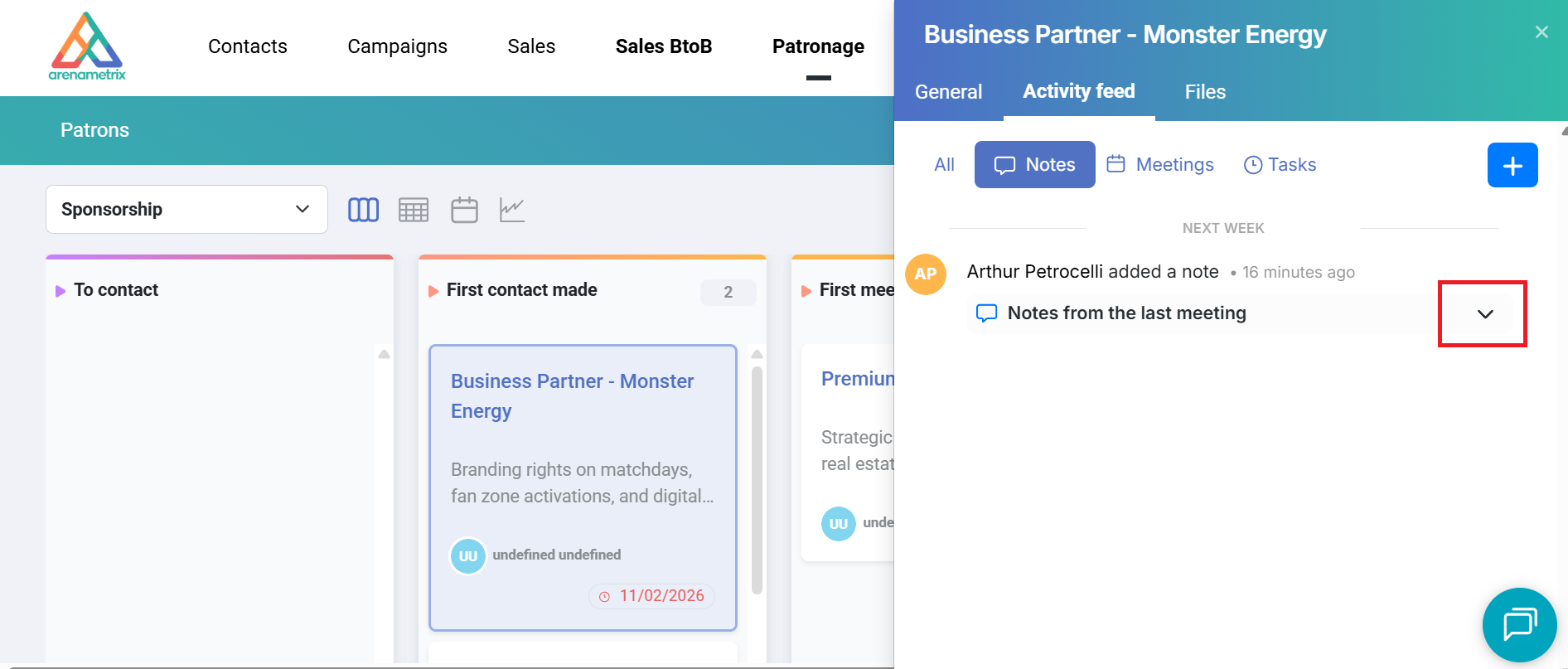
To view a note, click on it — it will expand below.
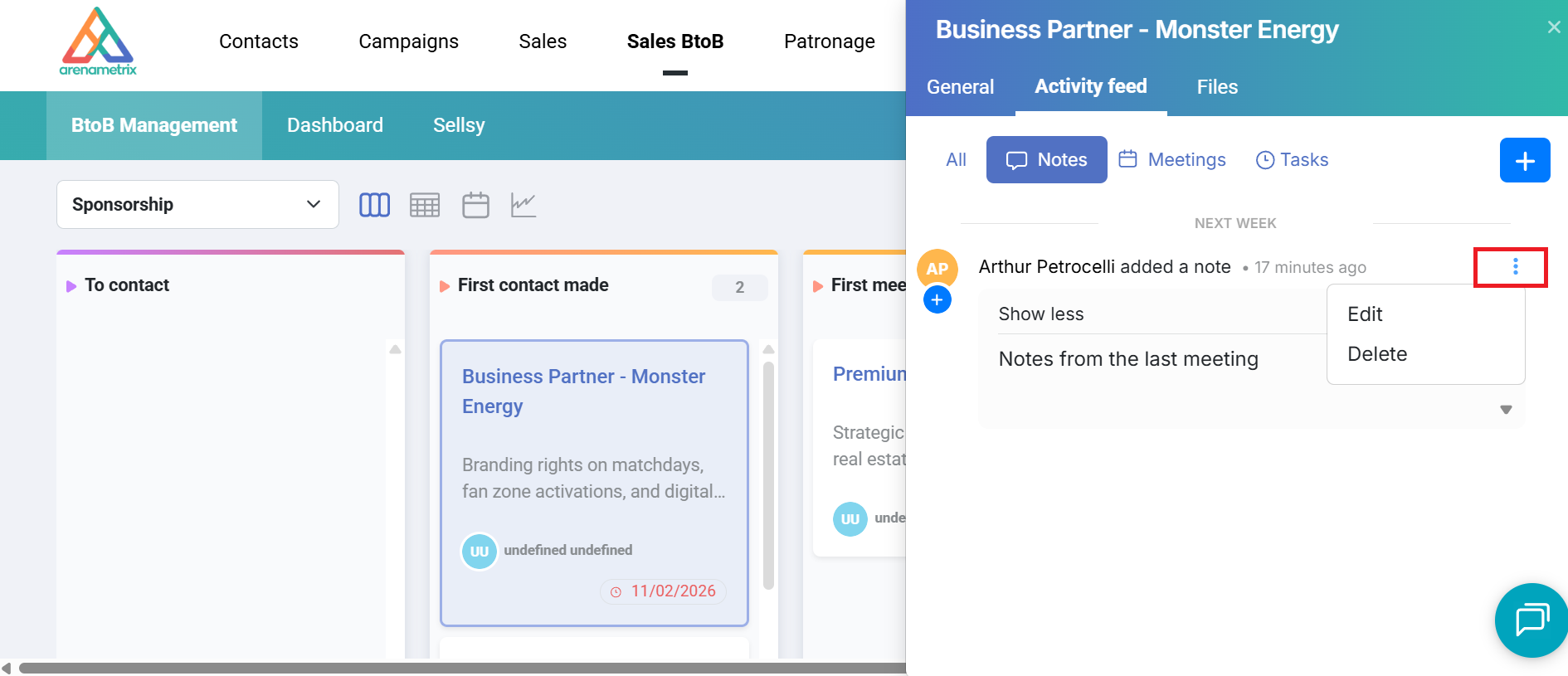
To edit or delete a note, click the … at the top right, then select Edit or Delete. Once your changes are made, don’t forget to click Save.