![Logo Arenametrix détouré blanc HD.png]](https://guide.arenametrix.com/hs-fs/hubfs/Logo%20Arenametrix%20d%C3%A9tour%C3%A9%20blanc%20HD.png?height=44&name=Logo%20Arenametrix%20d%C3%A9tour%C3%A9%20blanc%20HD.png)
- Add a filter
- Add several filters
- The addition of a condition
1. Add a filter
Without an active filter, you observe your global database.
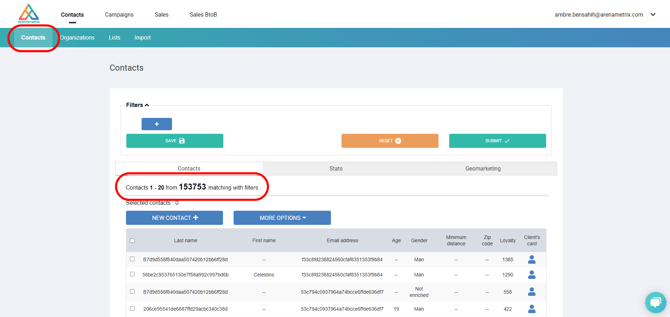
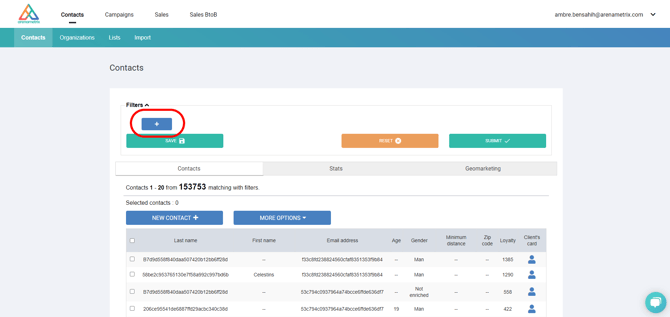
To segment your contacts and create marketing lists, use the Filters system. Start a segmentation by clicking on the button to add a new segmentation criterion to your contact database "+".
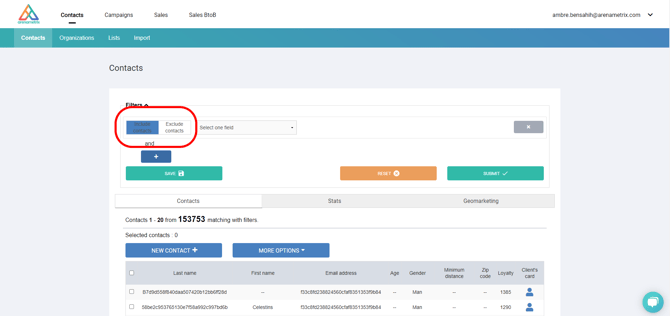
In this way, all the possibilities for segmenting your audience are displayed. First of all, you have the choice to include or exclude contacts that correspond to the chosen criteria.
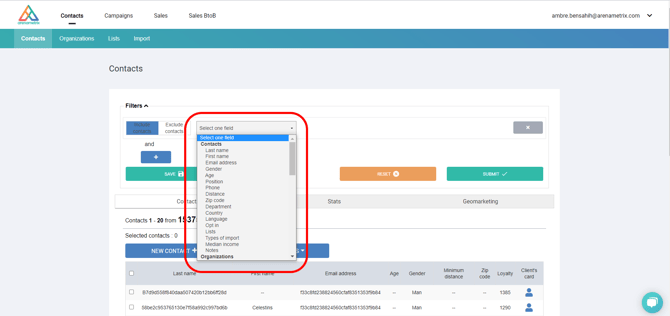
Then, choose the criterion that seems relevant to you thanks to the drop-down menu. Select one field.
Then, choose the calculation method that will impact the result of your search (we have chosen the example of segmentation by age of your audience in the image below).
Then enter the data you are interested in in the following fields.
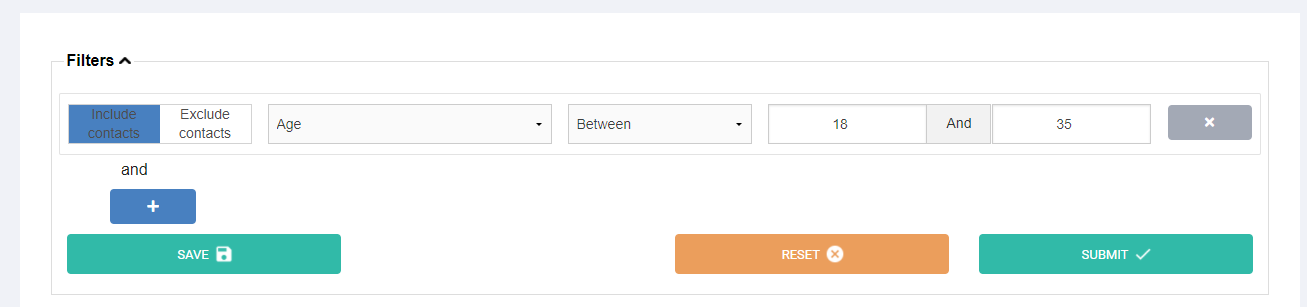
Finally, click Validate.
You have now created a filter for contacts in your database who are between 18 and 35 years old. As expected, the number of contacts has changed and decreased accordingly. (To learn more about the other filters, go here)
2. Add several filters
It is also possible and advisable to couple the segmentation fields in order to further refine your search. Simply add an additional filter by pressing the "+" button and follow the same method detailed previously.
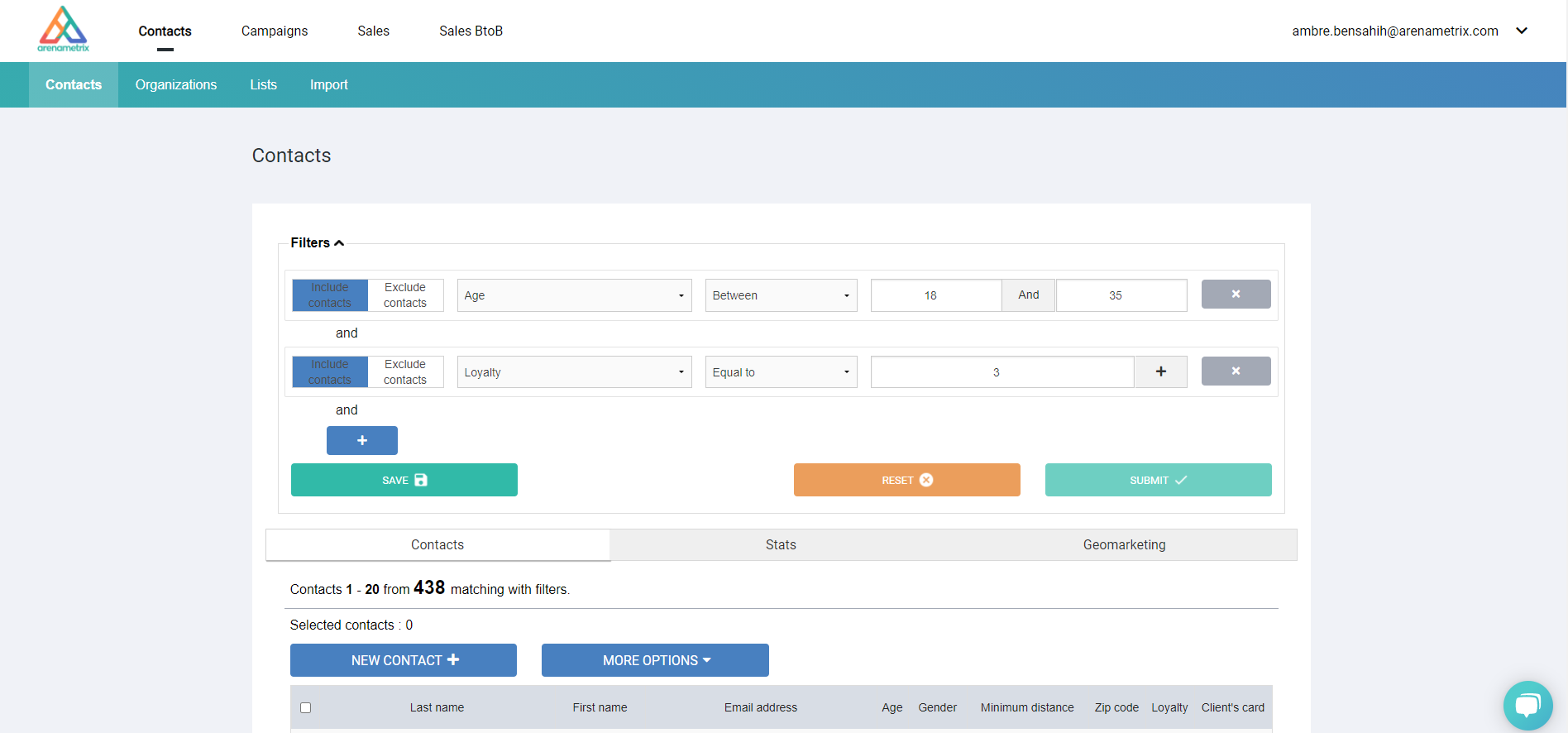
We have just created a filter that highlights people who are between 18 and 35 years old AND who are very loyal (these people have come at least 3 times). The remaining contacts then meet the two criteria at the same time: age and loyalty.
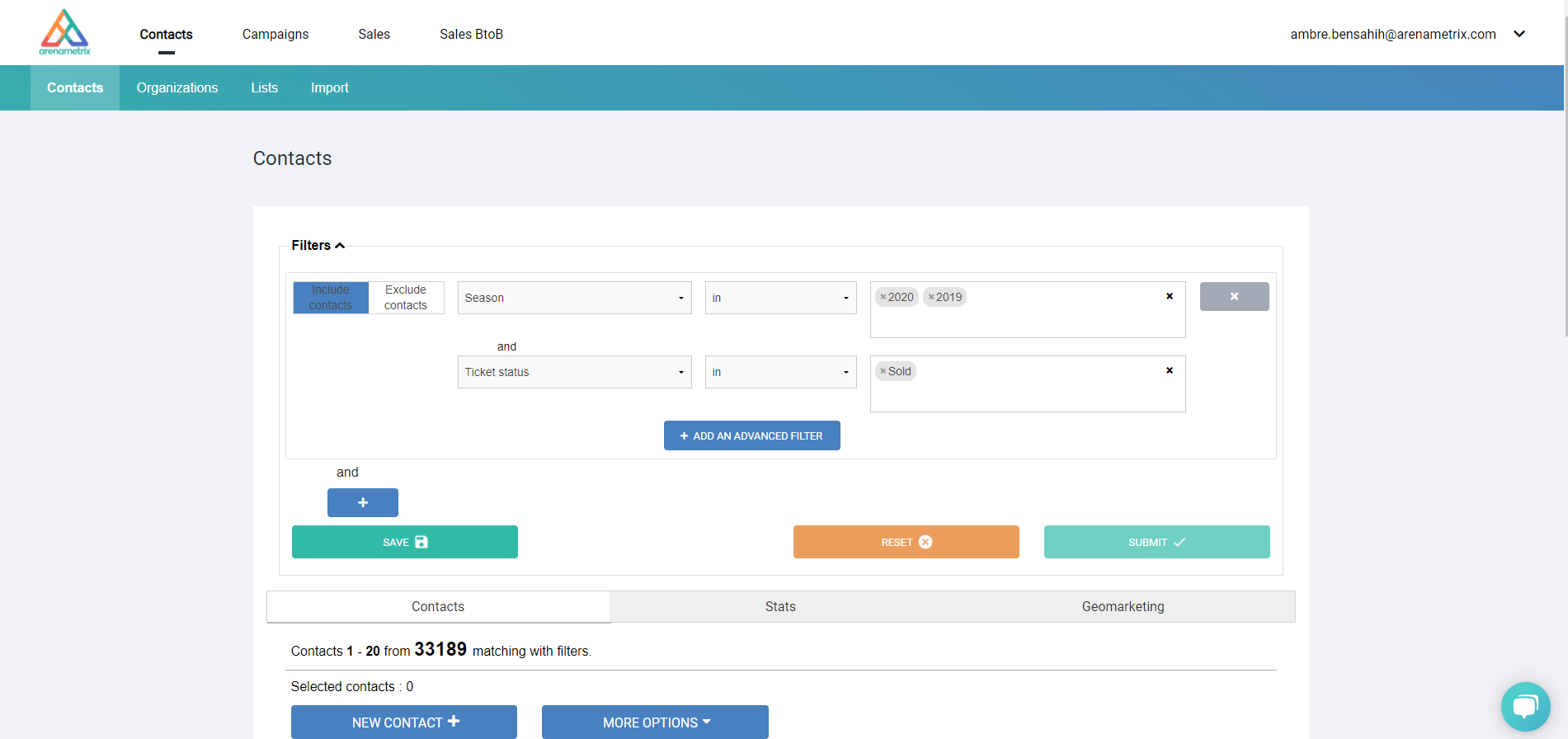
Conversely, if you wish to accumulate contacts from different criteria, simply add the information in the same field. Here's an example where we want to show the contacts who made a purchase either in 2020 or 2019, all cumulated in one and the same contact group (we find 33,189 contacts). This is the equivalent of an OR.
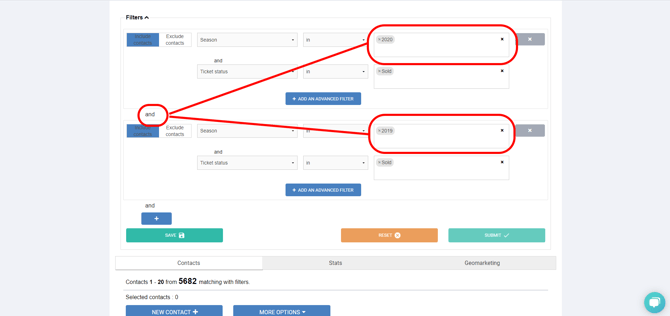
If your need is to know the people who came during each of these two seasons, here is how the filter works. They came in 2020 AND 2019. They are logically much less numerous (we find 5682 contacts).
3. The addition of an advanced filter
Adding a condition is useful when you want to combine information in your segmentations.
Please note: this only applies to purchase-related data.
For example, you may want to find people who purchased a specific price category only during the 2019 season.
To do this, enter 2019 in the Season filter, then click + Add an advanced filter, and select the Category filter you are interested in. Don’t forget to click Submit.
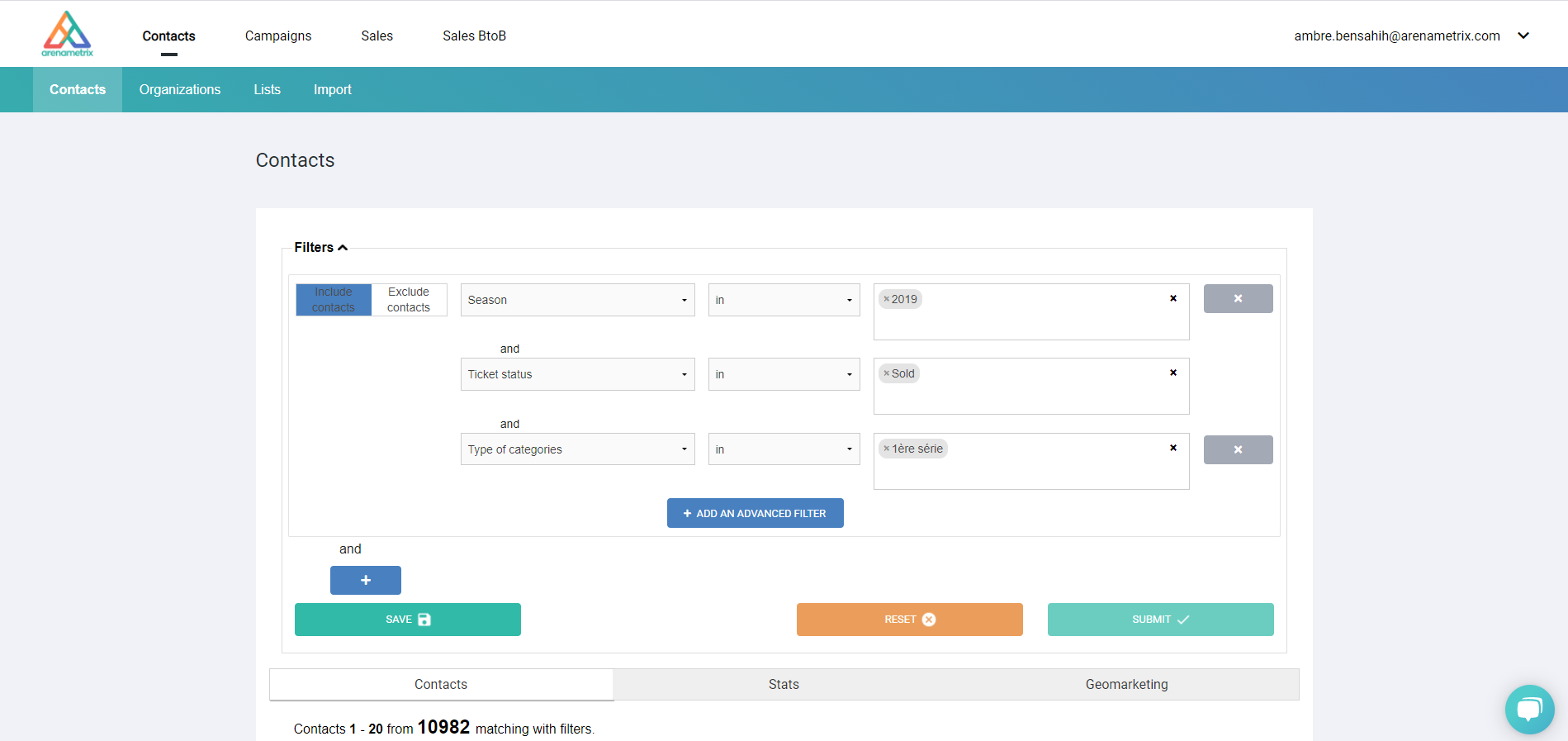
Unlike the previous filters, the two fields are in the same frame to show you that the segmentation conditions are linked. We get the contacts who have bought only this category of tickets during the 2019 season.