![Logo Arenametrix détouré blanc HD.png]](https://guide.arenametrix.com/hs-fs/hubfs/Logo%20Arenametrix%20d%C3%A9tour%C3%A9%20blanc%20HD.png?height=44&name=Logo%20Arenametrix%20d%C3%A9tour%C3%A9%20blanc%20HD.png)
A post-purchase scenario allows you to automatically send an email to each new buyer the day after their purchase. It's a simple yet effective touchpoint to strengthen the relationship with your audience right after they confirm their ticket.
The setup happens in two steps: creating the dynamic list in Arenametrix, then building the scenario in Brevo.
1. Create the dynamic list in Arenametrix
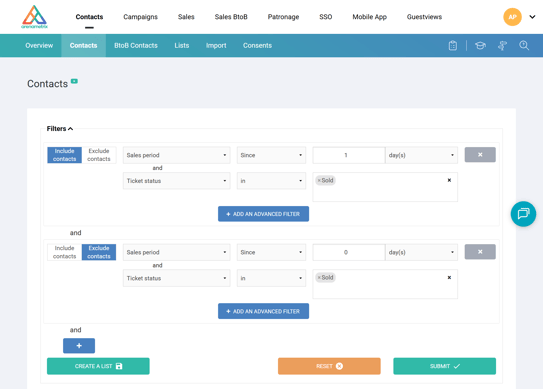
Go to the Contacts module, then open the Filters panel. Set up a first block in Include contacts mode targeting buyers from the previous day, and a second block in Exclude contacts mode to filter out same-day purchases, this ensures the email is sent the following day.
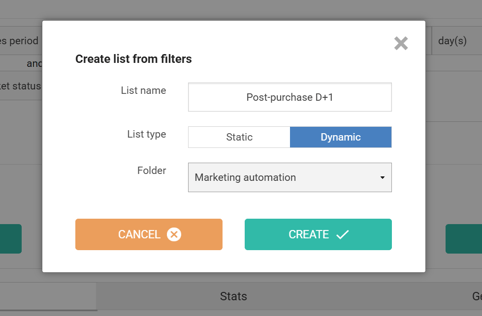
Once the filters are set, click Create a list . In the window that opens, name your list, select the Dynamic type, choose the Marketing automation folder, and click Create.
2. Create the scenario in Brevo
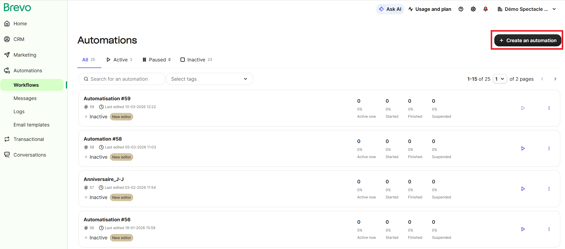
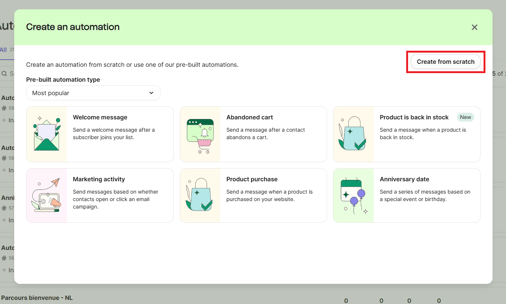
Once the list is created in Arenametrix, it is automatically synced to Brevo. Go to the Automations menu, then click Create an automation in the top right corner. In the window that opens, click Create from scratch.
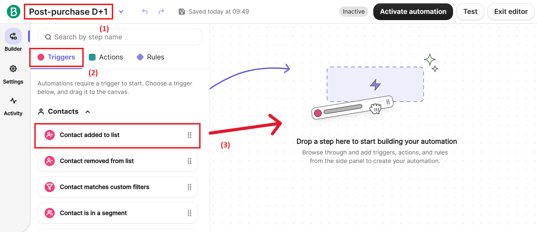
Give your automation a name in the top left (1). In the side panel, stay on the Triggers tab, then under the Contacts section, drag the Added to a list block (2) onto the canvas (3).
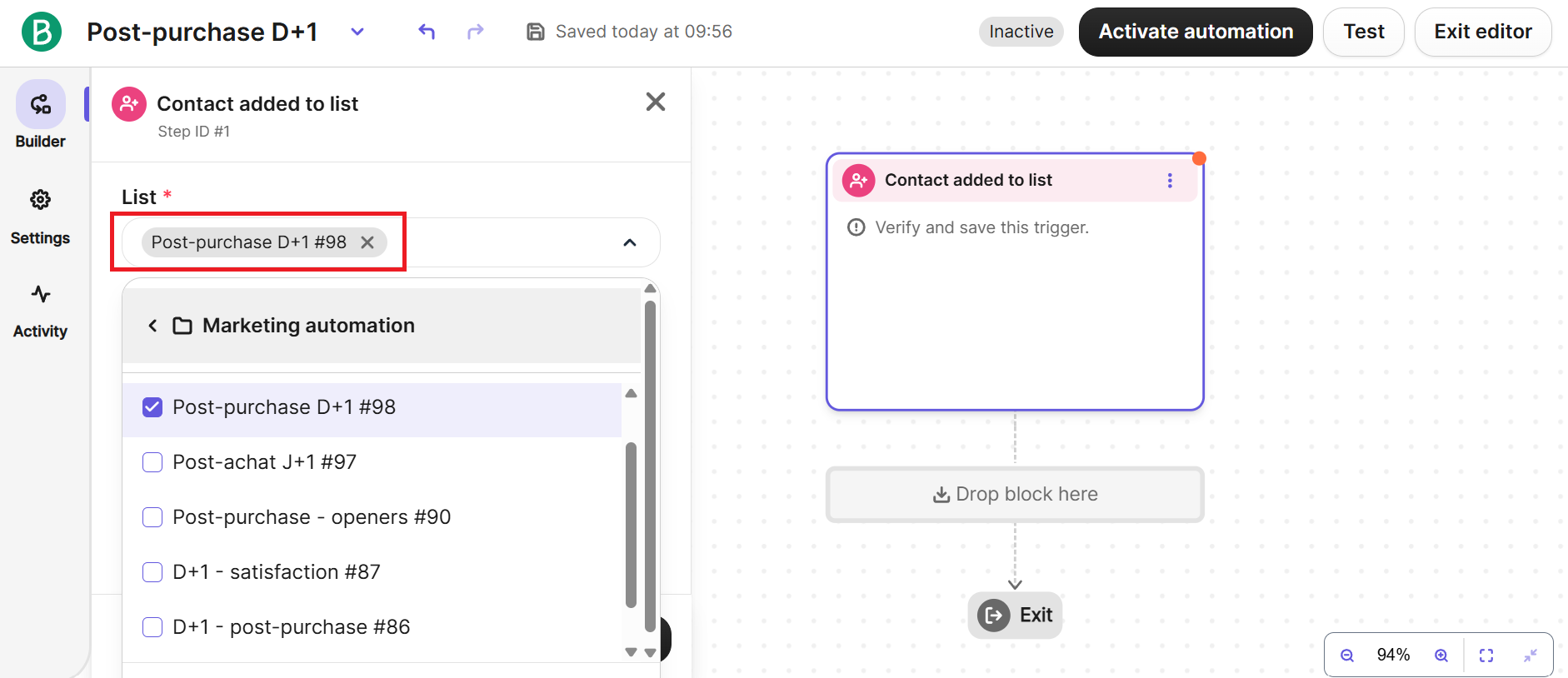
Click on the block to configure it: in the List field, search for and select the "Post-purchase D+1" list created earlier. Click Save.
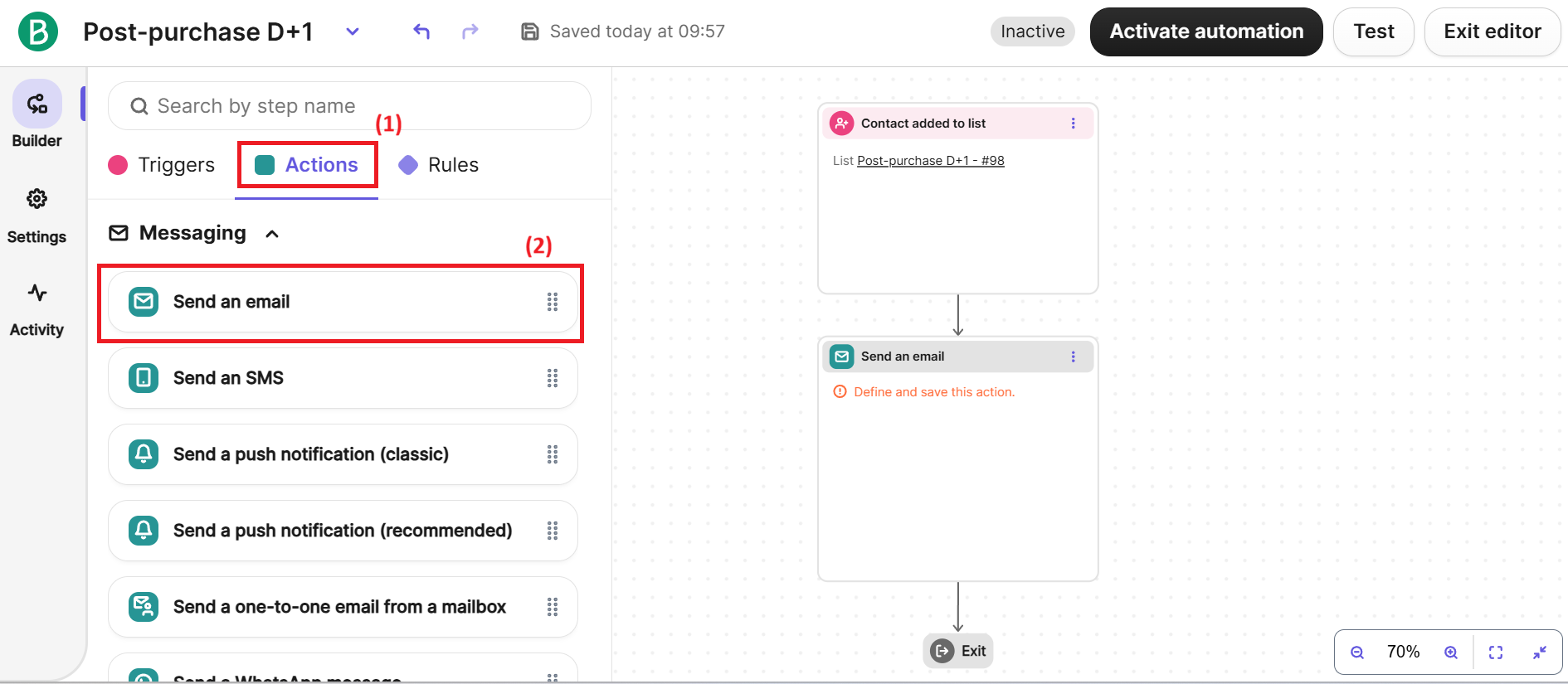
In the side panel, switch to the Actions tab (1). Under the Messages section, drag the Send an email block (2) below the trigger on the canvas.
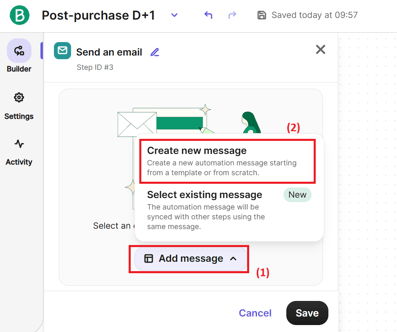
Click on the block, then on Add a message (1) and select Create a new message (2).
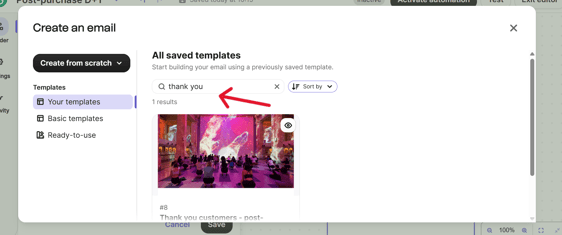
In the window that opens, you can search for an existing template from your saved models or create an email from scratch. Select the desired template and save the action.
After selecting the email template, remember to review and adjust the message settings before saving it.
Make sure to specify:
- the email subject, which should be clear, personalized and engaging,
- the preview text, visible in the inbox,
- the sender, to ensure consistent identification of your organization.
In the additional settings, you can also refine the sending conditions, for example by scheduling the message to be sent at the optimal time.
3. Test and activate your scenario
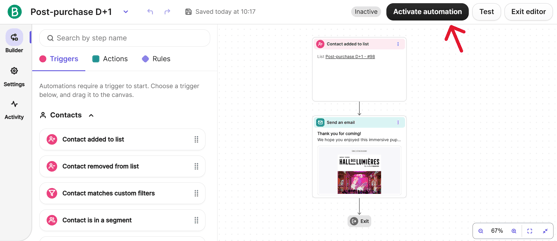
Your scenario is now ready. Before activating it, we recommend clicking Test to ensure the journey works properly. Once the test is validated, click Activate automation.