![Logo Arenametrix détouré blanc HD.png]](https://guide.arenametrix.com/hs-fs/hubfs/Logo%20Arenametrix%20d%C3%A9tour%C3%A9%20blanc%20HD.png?height=44&name=Logo%20Arenametrix%20d%C3%A9tour%C3%A9%20blanc%20HD.png)
- Setting up event types
- Setting up price formula types
- Setting up category types
- Setting up venues
Configuring these elements from the start structures your entire data analysis: they allow you to classify your programming, pricing, and venues, and determine the quality of your segmentation. The clearer and more concise your structure, the more value it generates for you and your team.
Prerequisite: before getting started, check whether these fields are automatically pulled from your ticketing system. If so, Arenametrix uses the existing setup and this configuration is not required.
1. Setting up event types
Event types allow you to classify your programming: show, workshop, meet-and-greet, youth event... The number of types should remain limited to keep your analysis straightforward.
To get started, hover over your login address, then go to Settings > Products.
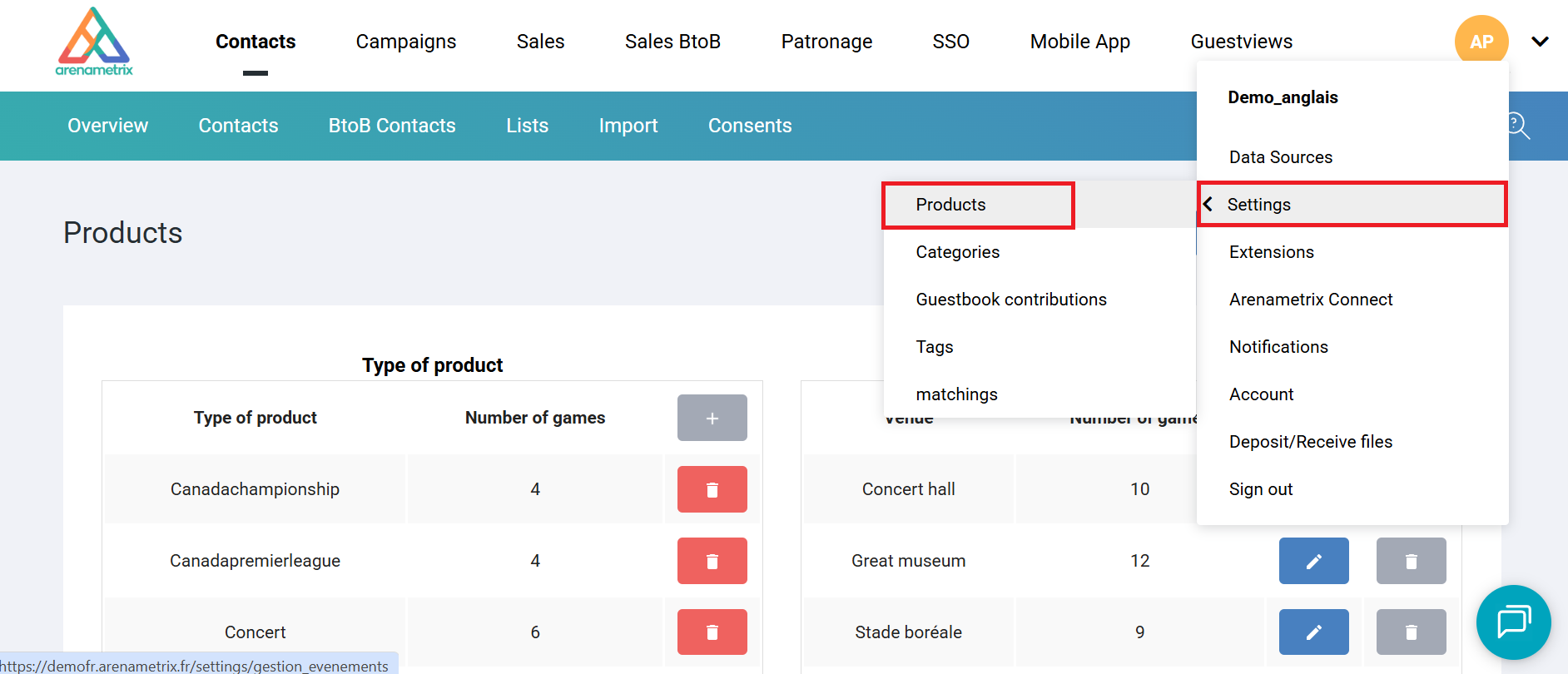
This page displays all existing event types. To create a new one, click the + button.
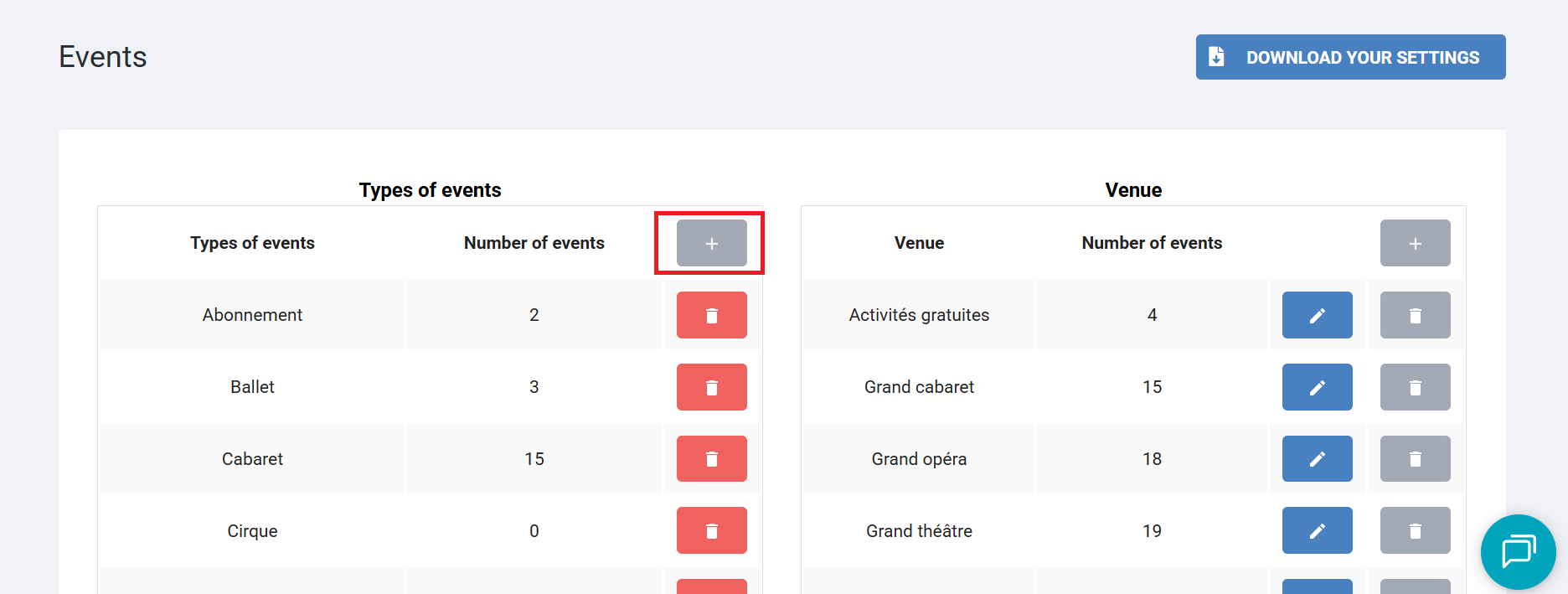
Once the element is created, simply assign your events to the type of your choice.
Go to the bottom of the page, select the relevant season, and update the event type for the desired event. Note that an event can only be assigned to one event type.

2. Setting up price formula types
Price formula types allow you to classify your pricing and simplify rate analysis: full price, reduced rate, youth rate, group rate... An overly detailed grid complicates segmentation, so keep it concise.
Hover over your login address, then go to Settings > Categories. This page displays all existing category types and price formula types. Click on the Pricings tab.
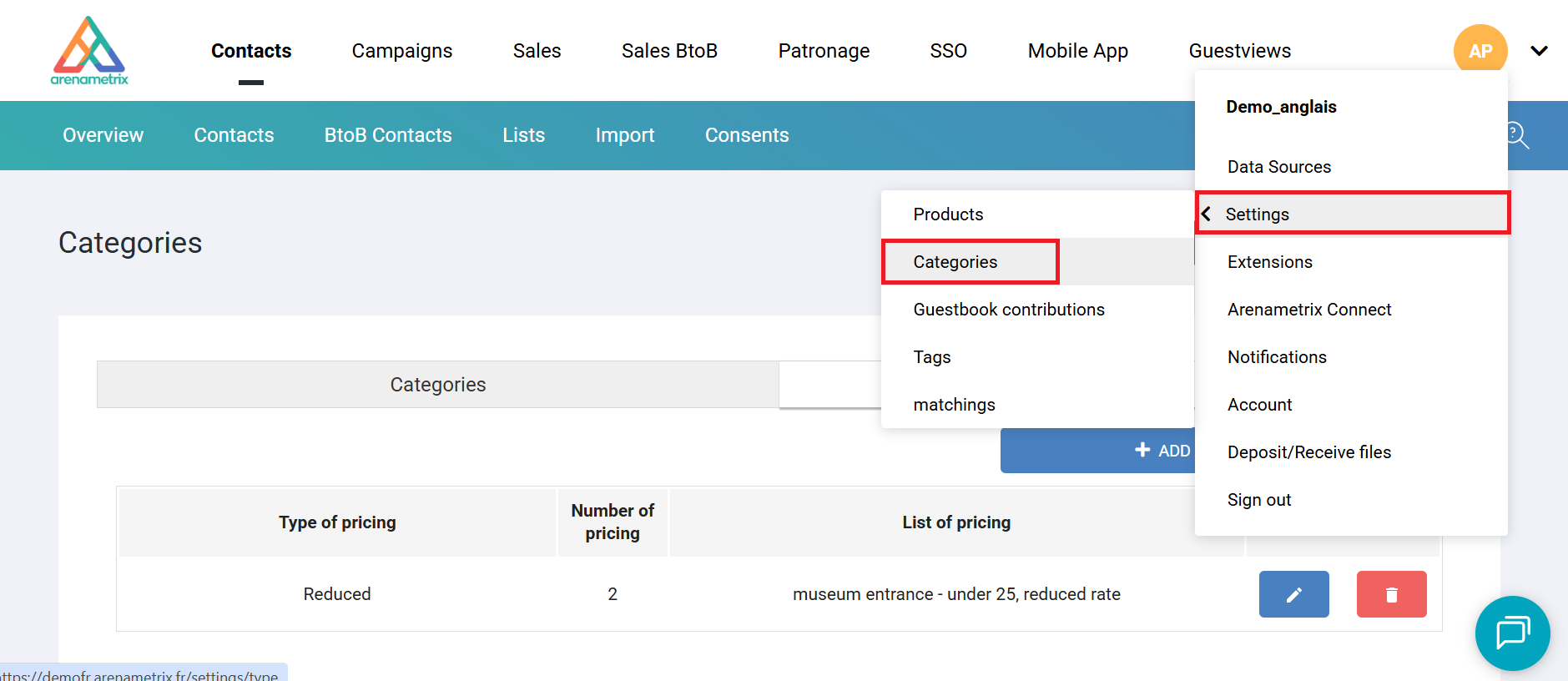
To create a new type, click Add a tarif type, name the element, then select all corresponding rates.
Note that a price formula can belong to multiple price formula types.


3. Setting up category types
Category types allow you to classify your categories in the same way price formula types structure your pricing.
Hover over your login address, then go to Settings > Categories. This time, click on the Categories tab.
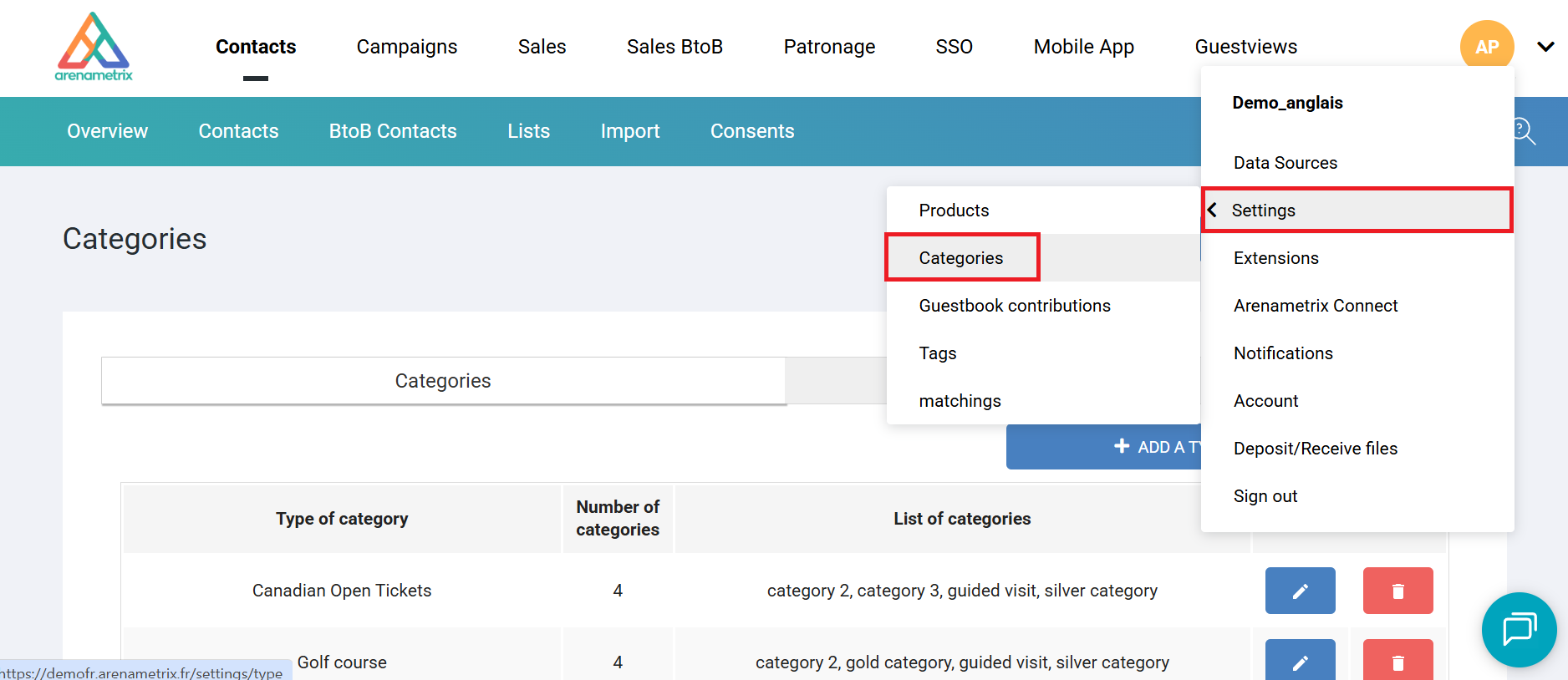
To create a new type, click Add a type of category, name the element, then select all corresponding categories.
Note that a category can belong to multiple category types.


4. Setting up venues
Venues provide additional information about your events and allow you to segment your buyers based on the locations they have visited.
Hover over your login address, then go to Settings > Products.
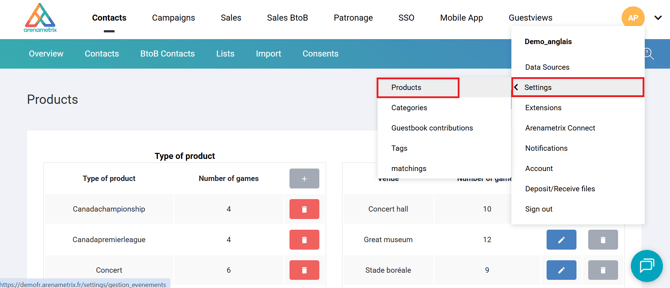
This page displays all existing venues. To create a new one, click the + button.

Once the venue is created, assign your events to it by going to the bottom of the page, selecting the relevant season, and updating the venue for the desired event. Note that an event can only be assigned to one venue.
