![Logo Arenametrix détouré blanc HD.png]](https://guide.arenametrix.com/hs-fs/hubfs/Logo%20Arenametrix%20d%C3%A9tour%C3%A9%20blanc%20HD.png?height=44&name=Logo%20Arenametrix%20d%C3%A9tour%C3%A9%20blanc%20HD.png)
-
How to create a list?
- The different types of lists
1. How to create a list ?
One of the objectives of segmentation is to create homogeneous audience groups, save them for later use, or communicate with this qualified audience using a tailored message to increase their engagement. You can learn how to segment the contact base and explore all available filters.
Once your filters are validated, you can save them by clicking the Create a list button.
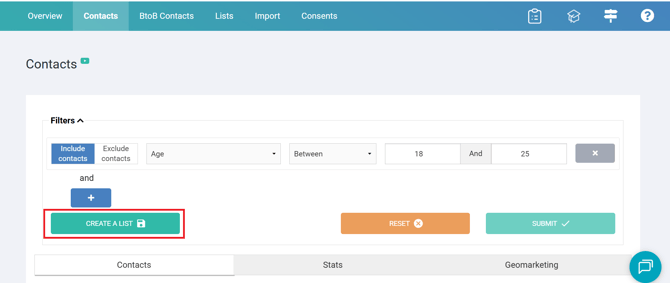
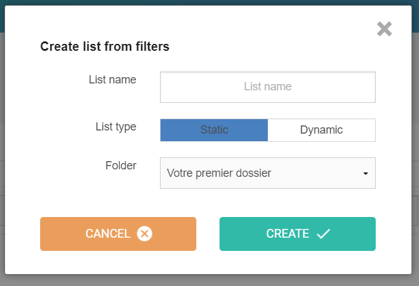
You will then have several options:
-
Name your list with a title that allows you to easily identify it.
-
Choose the list type: static or dynamic.
-
Select the Folder in which the list will be created. The folder must first be created from the Lists page. Feel free to create folders based on your use cases (“Newsletters”, “Segmentation”, etc.) or based on locations (“Venue XX”, “Gardens YY”, etc.).
2. The different types of lists
A dynamic list is a list that updates daily. Each time a new contact matches the targeting criteria, they are automatically added to the list. Conversely, a contact who no longer meets the criteria is automatically removed from the list. This is particularly useful when building automation scenarios.
Example: a dynamic list with the criterion “Birthday = Today” can be used to send emails wishing contacts a happy birthday on the day itself.
Unlike a dynamic list, a static list does not change over time unless a manual action is performed. This is useful for calculating the return on investment of campaigns, or simply when a list is only needed once.
A contact can be added to or removed from a static list from the Contact page, but also through a Form. This is particularly useful for allowing contacts to subscribe or unsubscribe from a newsletter independently, for example.
Additionally, when you import contacts manually, they are added to a list of the Manual Import type created for this purpose. Manual Import lists behave like static lists, except that you cannot add or remove contacts.

For your information: it is recommended to systematically create a dedicated static list after a manual import, and then delete the Manual Import list once the process is complete. Please note that data from the latest import takes priority over data already present in the database.